How to convert S-Log3 to Rec.709 in Premiere Pro, DaVinci Resolve and Final Cut (Sony A7 IV, FX3, ZV-E1)
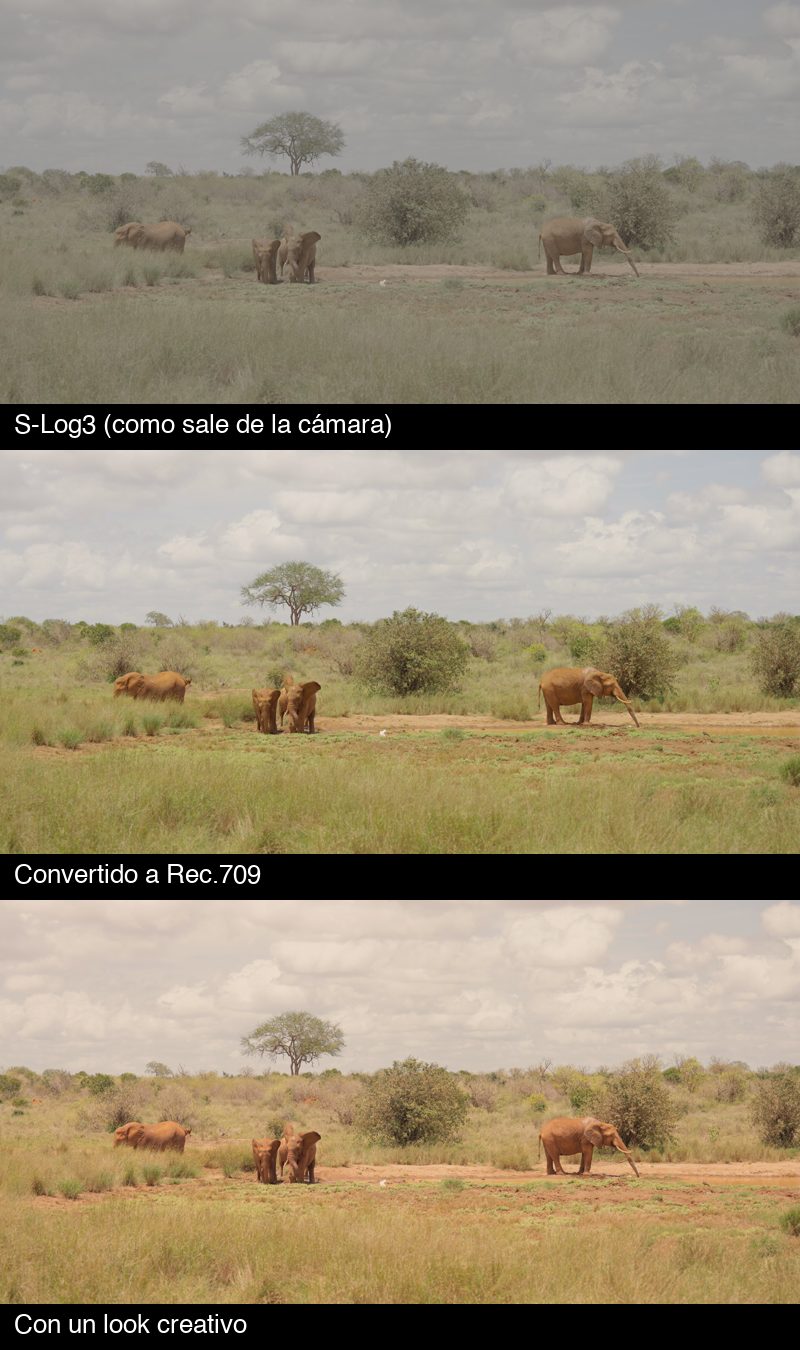
If you shot S-Log3 on a Sony (A7 IV, A7S III, A7C II, FX3, FX30, ZV-E1), the footage comes out grey and washed out. Nothing is wrong: log keeps more information in the highlights and shadows so you choose the contrast later. You have to convert it to Rec.709, which is what a normal screen shows. I am a video editor and colorist; this is how I do it in each app.
First: check the gamut
In camera, S-Log3 is paired with a gamut: S-Gamut3.Cine or S-Gamut3. They are different. Convert with the wrong one and colors shift (odd greens, odd skin). On most recent Sony bodies PP8 is S-Gamut3 and PP9 is S-Gamut3.Cine. Check the clip metadata or the camera menu.
In Premiere Pro
- Since Premiere 2022 Sony log is recognized. Right click the clip › Modify › Interpret Footage › Color Management: let it use the clip's color space, or pick S-Log3 / S-Gamut3.Cine by hand.
- Set the sequence working space to Rec.709. Premiere then does the conversion for you.
- If you prefer a LUT: Lumetri › Basic Correction › Input LUT › Sony's official LUT (s709 or LC-709). Use one or the other, never the automatic conversion and the LUT together.
- Then fix exposure and white balance in Basic Correction; the look goes in Creative › Look.
In DaVinci Resolve
- First node: Color Space Transform. Input Color Space Sony S-Gamut3.Cine, Input Gamma Sony S-Log3. Output Rec.709, Gamma 2.4.
- Set Tone Mapping to DaVinci: it rolls off highlights instead of clipping them.
- Exposure and balance in nodes before the CST (you work on the log, which is cleaner). The look goes in a node after it.
In Final Cut Pro
Select the clip › Info inspector › Camera LUT › Sony S-Log3/S-Gamut3.Cine. Continue with normal correction from there.
Exposing S-Log3 so it stays clean
- S-Log3 has a high base ISO (800 on the A7 IV and FX3 in log). In bright light you need an ND filter, not a faster shutter.
- Expose 1 to 1.5 stops over what the meter says: S-Log3 middle grey sits at 41%, and if you leave it dark you get noise in the shadows when you convert.
- Set zebras to 94% so highlights do not clip.
After converting: the look
The conversion gives a correct but neutral image. The style (teal and orange, warm, film) goes on top with a creative LUT at 40 to 80%. Some creative LUTs include the conversion and go straight on the S-Log3 clip, saving a step. They only work if they match your gamut, so make sure they say S-Gamut3.Cine.
Summary
- Confirm the gamut: S-Gamut3.Cine or S-Gamut3.
- Convert once: your app's color management, a CST, or an official LUT.
- Exposure and balance first, then the look.
- When shooting: 1 to 1.5 stops more light, ND if needed, zebras at 94%.
Shooting on an iPhone, Panasonic or Fujifilm too? See Apple Log to Rec.709 and V-Log and F-Log2 to Rec.709.
Try one of my LUTs, free
Teal Gold Lite, a full Montes Color look graded on footage I shot myself, with versions for iPhone Apple Log, Sony S-Log3, Panasonic V-Log, Fujifilm F-Log2 and Rec.709. Pay what you want from zero. If it works for you, the pack has 8 looks in 40 LUTs with the log conversion built in.
Get the free LUT See the 40-LUT pack on Etsy or on itch.io, pay what you want from USD 6